Microsoft Defender is a component of Windows 10 and 11 that provides comprehensive, built-in and ongoing security protections. It features an anti-virus, anti-malware, firewall and more, to keep your personal computer safe.
Learn more about from the vendor’s website.
NOTE: Microsoft Defender cannot be enabled when another anti-virus is installed, e.g.: Trend Micro Antivirus
To enable Windows Defender
1. Click the windows logo听 听in the bottom left corner of the screen.听The Start menu will pop up. 听in the bottom left corner of the screen.听The Start menu will pop up. |
|
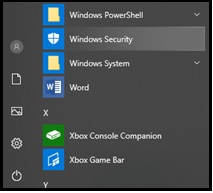
| 2. Scroll down and click听Windows Security听to open the application.
|
|
| 3. On the Windows Security screen, check if any antivirus program has been installed and running in your computer. | |
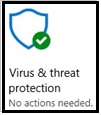 |
Green tick: An antivirus program is present and running in your computer. Enabling of Windows Defender is not necessary as your computer is protected by Windows Defender. |
听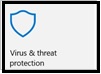 |
No tick: No antivirus present and Windows Defender is not enabled in your computer. Please proceed to听next step听to enable Windows Defender, to keep your personal computer safe. |
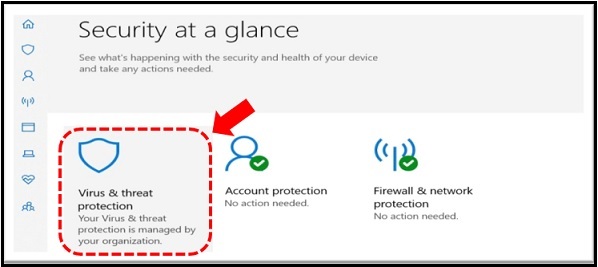
| 4. Click on听Virus & threat protection听as shown
|
|
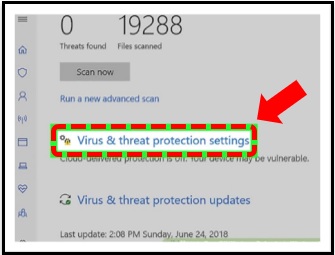
| 5. Next, select听Virus & threat protection听icon
|
|
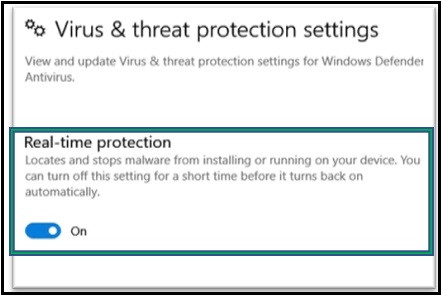
| 6. Turn on for听Real-time protection
|
|
听